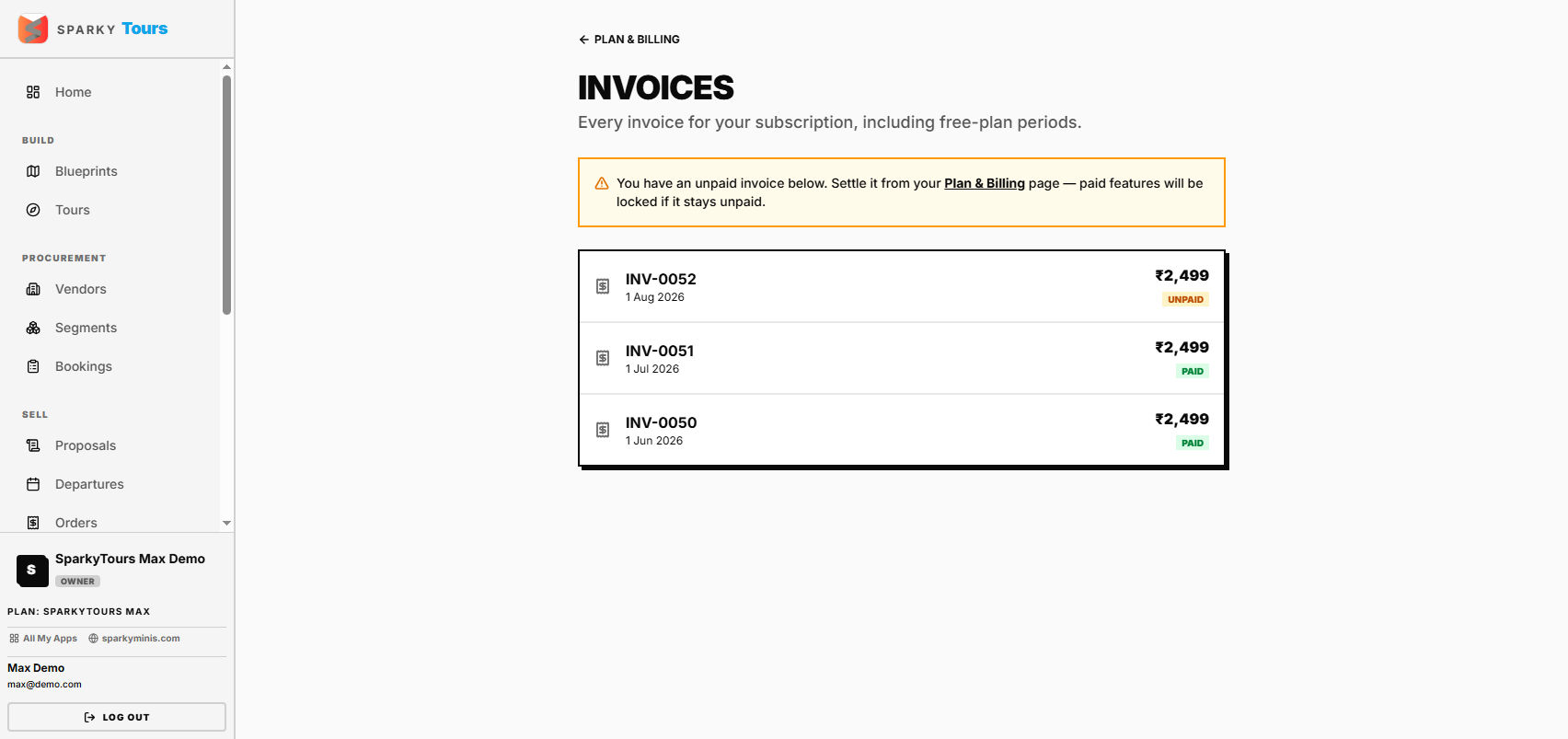
Plan & Billing
Manage your subscription plan and see what each tier unlocks.
How to see your current plan
Open Settings → Billing. You'll see your current plan, its price, and what's included, alongside the other tiers for comparison.
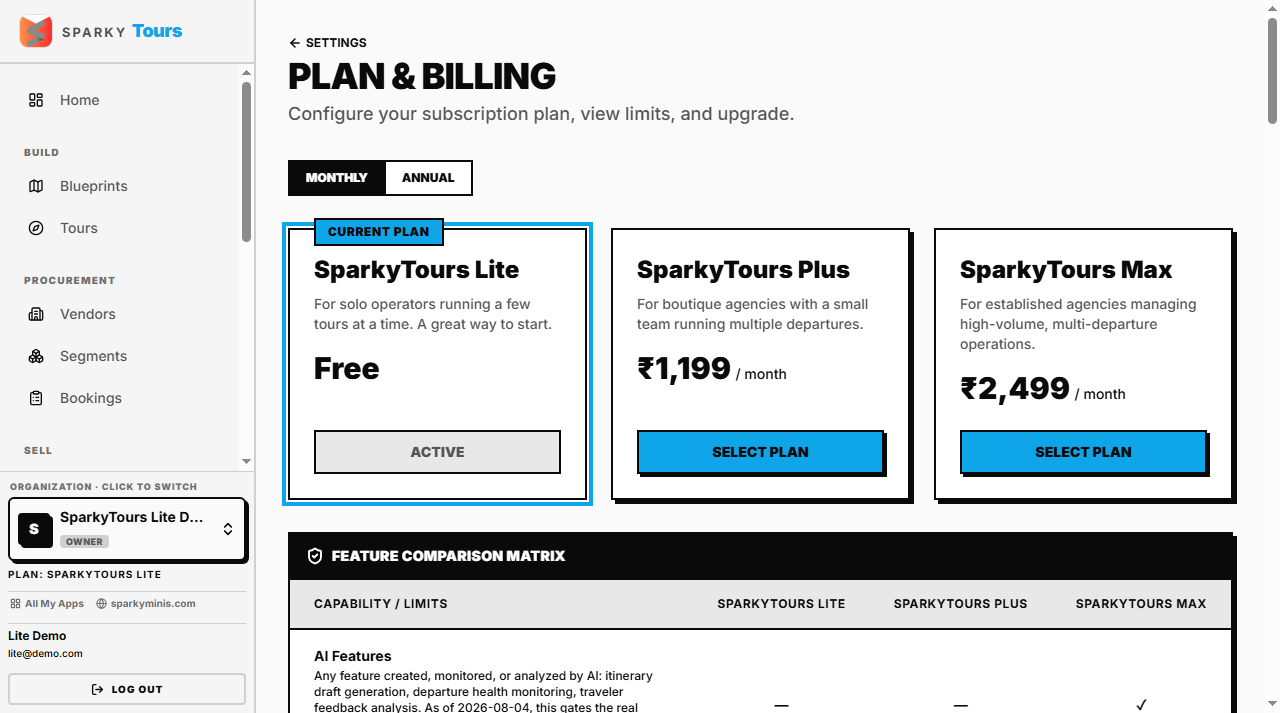
How to upgrade your plan
Pick Monthly or Annual billing, then choose a plan and select it. You'll be taken through a secure checkout to add a payment method and complete the purchase. Once payment goes through, your new plan takes effect and any features it unlocks become available.
How to downgrade or cancel your plan
Choose a lower plan (or Lite, to cancel any paid plan) the same way you'd upgrade. Downgrades aren't immediate — your current plan stays active until the end of your current billing period, and you'll see the downgrade listed as pending until then.
How to view your invoices
Every billing period — including free Lite periods — gets its own invoice, issued by SparkyMinis. From Settings → Billing, click "View Invoices" to see the full list with status (Paid/Unpaid) and amount. Click any invoice to open a print-ready document showing the issuer, your organization as the bill-to party, the plan and price, and a Print button in the top-right. If an invoice is left unpaid, you'll see a warning banner on this list pointing you back to Plan & Billing to settle it — an unpaid invoice shows as "sent" on its own document until it's paid.