
Blueprints
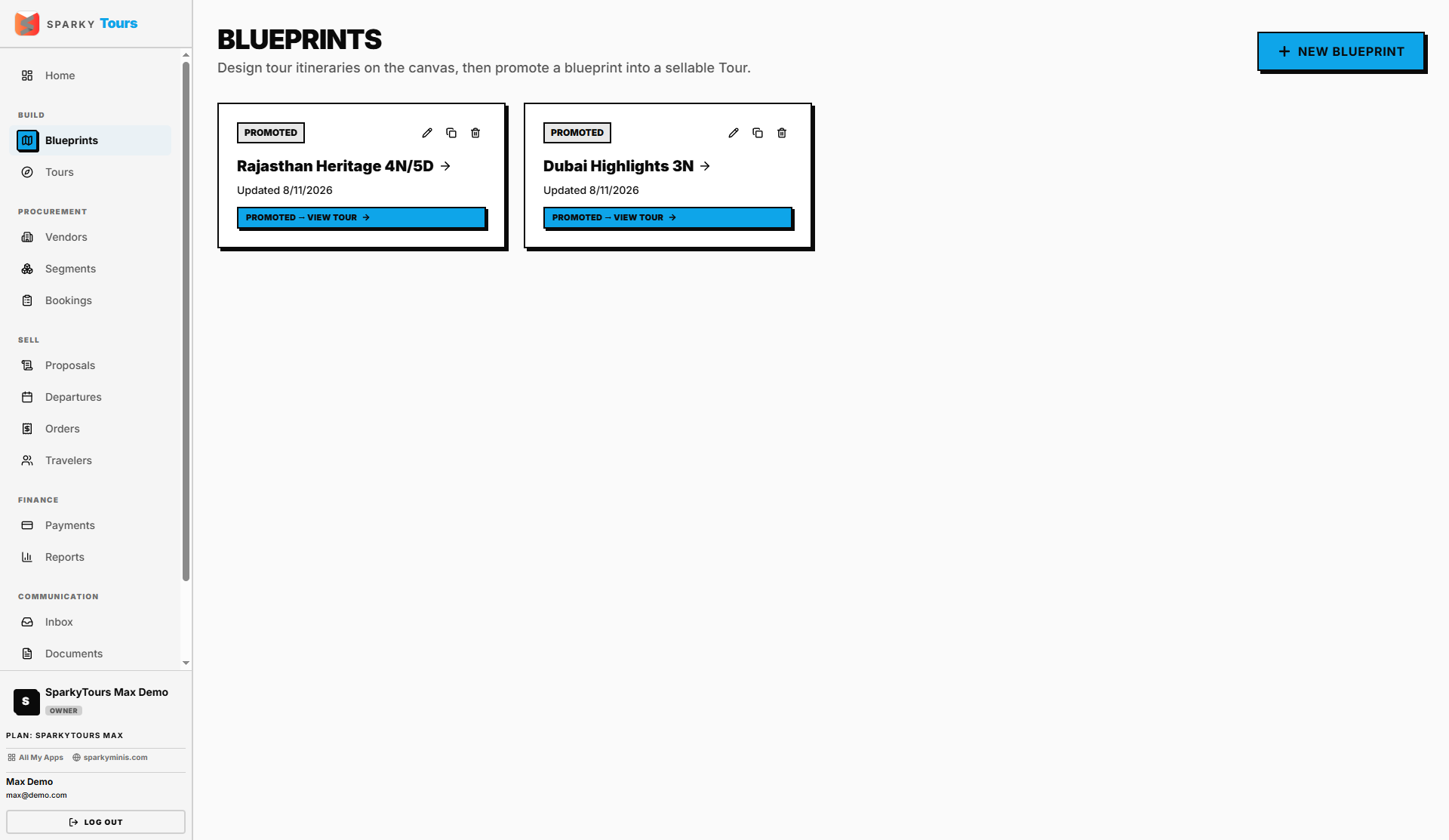
Blueprints are draft tour plans you design on a visual canvas before turning them into a sellable Tour. You can have more Blueprints than Tours, since they're cheap drafts you can throw away.
How to create, rename, duplicate, or delete a Blueprint
From the sidebar, open Blueprints to see your list. Click New Blueprint, give it a name, and optionally tag it with countries it covers. From the list you can rename a Blueprint, duplicate one (this copies its name, canvas, countries, and full itinerary graph into a new draft), or delete one.
How to design a Blueprint on the canvas
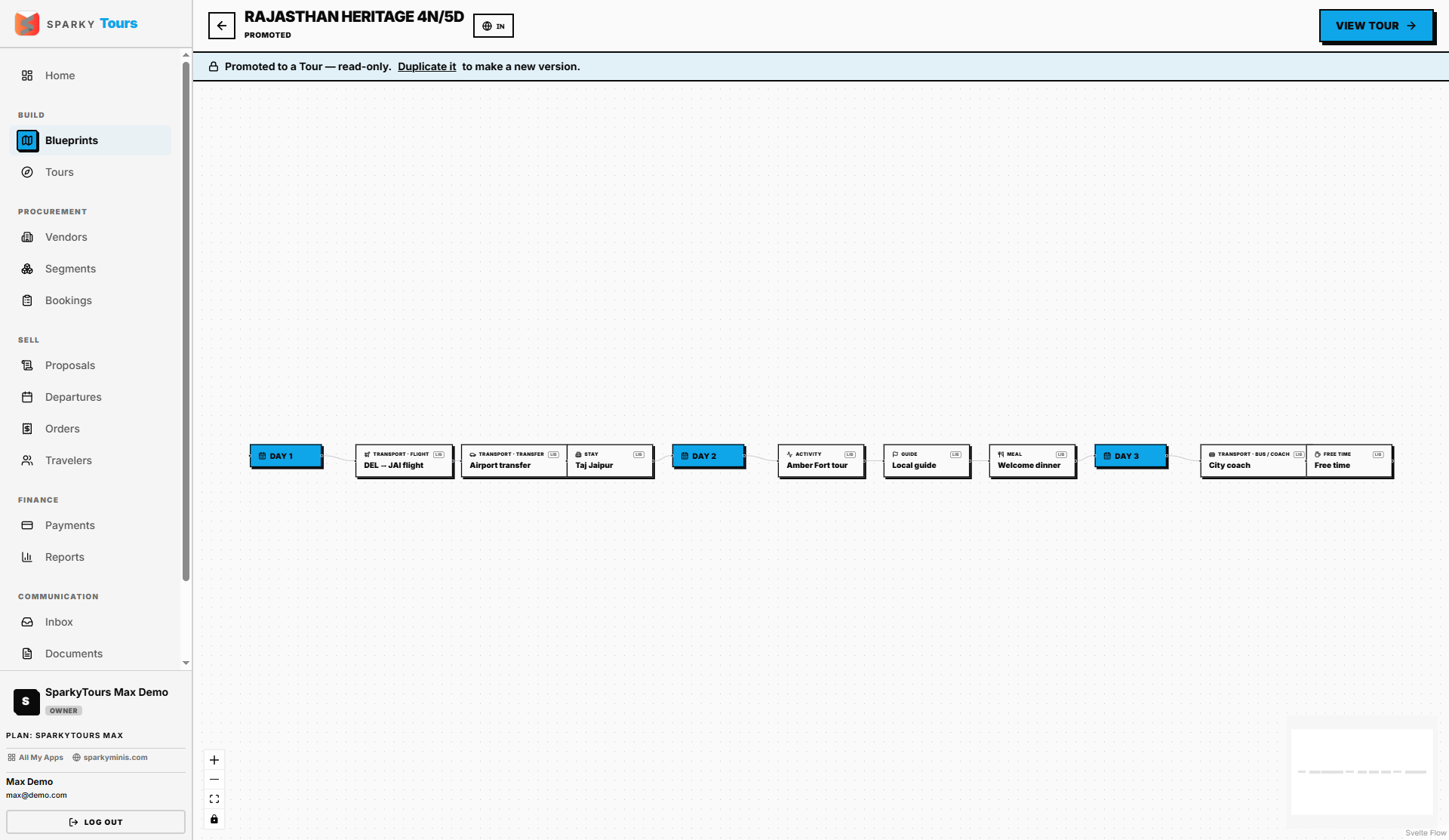
Open a Blueprint to reach its canvas. Drag day and segment nodes onto the canvas and wire them together into a chronological (or branching) itinerary, drawing from your Segment Library and vendor catalog as building blocks. Saving persists your whole itinerary graph. You can also define a brand new reusable segment directly from the canvas without leaving it.
How to promote a Blueprint into a Tour
From the canvas, click Promote. This turns your draft into a real, sellable Tour — a Blueprint can only be promoted once, so if you want to make more changes to a design you've already promoted, duplicate it first and promote the copy. Promoting resolves each segment's preferred vendor as the Tour's intended supplier. If your organization requires review before tours go live, the new Tour starts as "pending review" instead of going active immediately.