Departures
A Departure is one scheduled run of a Tour on specific dates — this is where you manage pricing, vendor bookings, traveler orders, companion-app info, and shared documents for that specific trip.
How to view, create, cancel, or delete a Departure
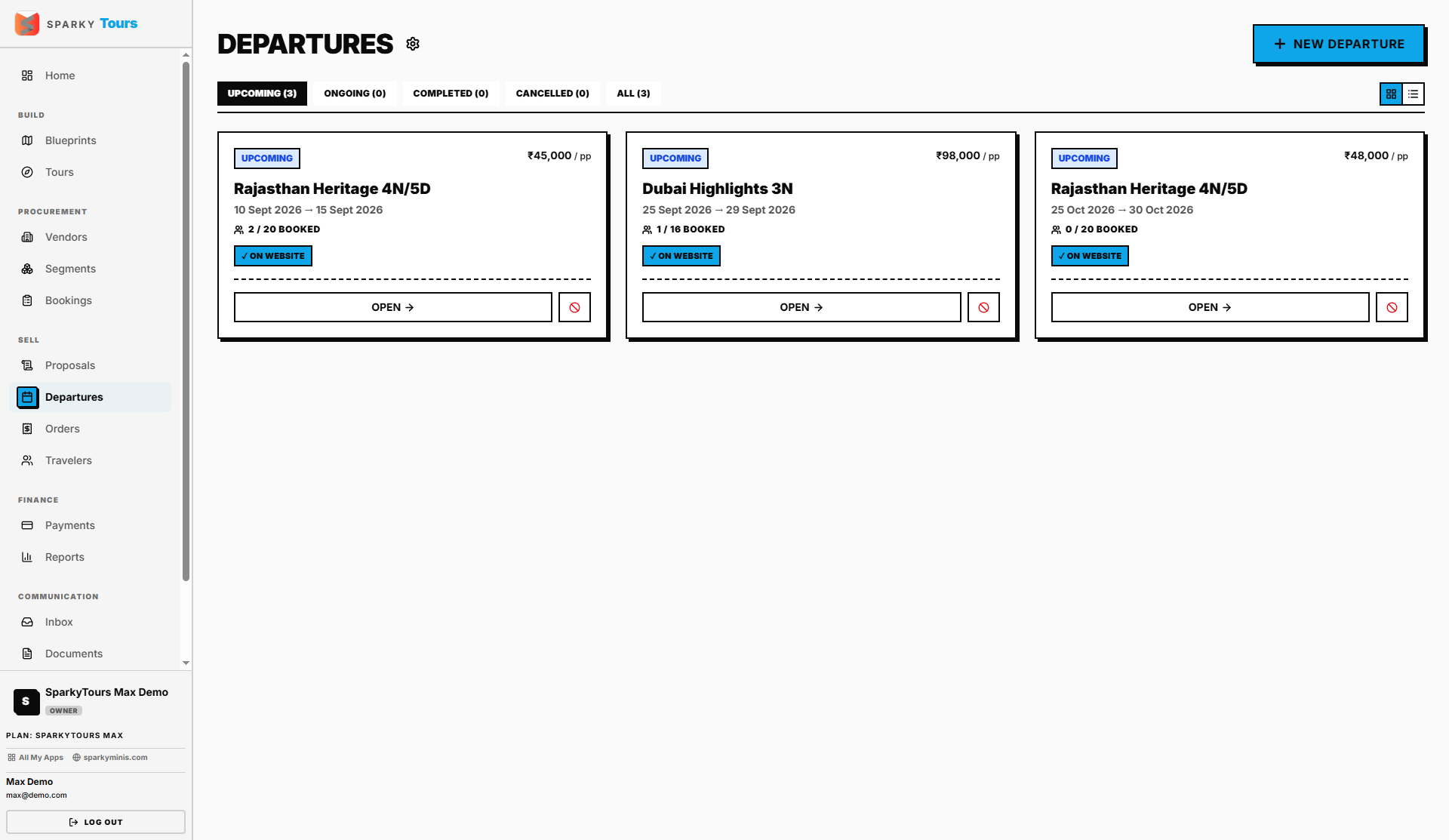
Open Departures from the sidebar. Click New Departure, pick the Tour, set departure/return dates and capacity — price and currency are optional at this point. New Departures always start as "upcoming." Cancelling a Departure soft-cancels it without touching any existing orders or bookings. You can also toggle whether it shows on your public website. Deleting a Departure is permanent and only allowed if it has no orders or bookings attached yet.
How to manage a Departure in detail
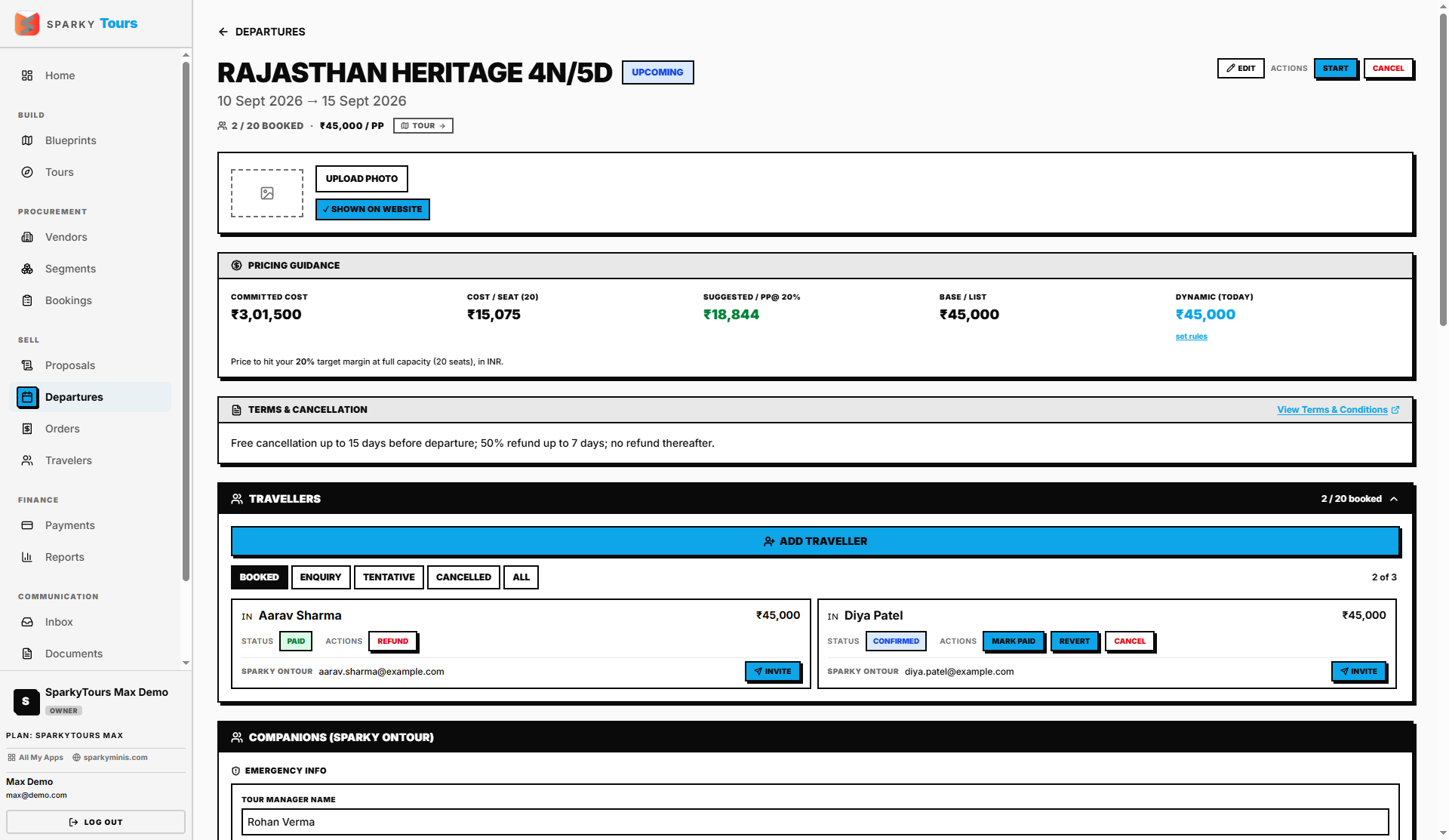
Open a Departure to reach its full workspace — pricing, vendor bookings, traveler orders, companion info, and shared documents all live here.
- Notes and capacity can always be edited (capacity can't drop below seats already sold).
- Price can only be changed while the Departure is still "upcoming."
- Dates and currency can only be changed while "upcoming" and before anything is booked or sold.
You'll also see pricing guidance: your actual cost per seat (converted to your base currency) and a suggested price at your target margin, plus a live preview reflecting any lead-time or occupancy-based pricing rules you've set up.
How to manage vendor bookings for a Departure
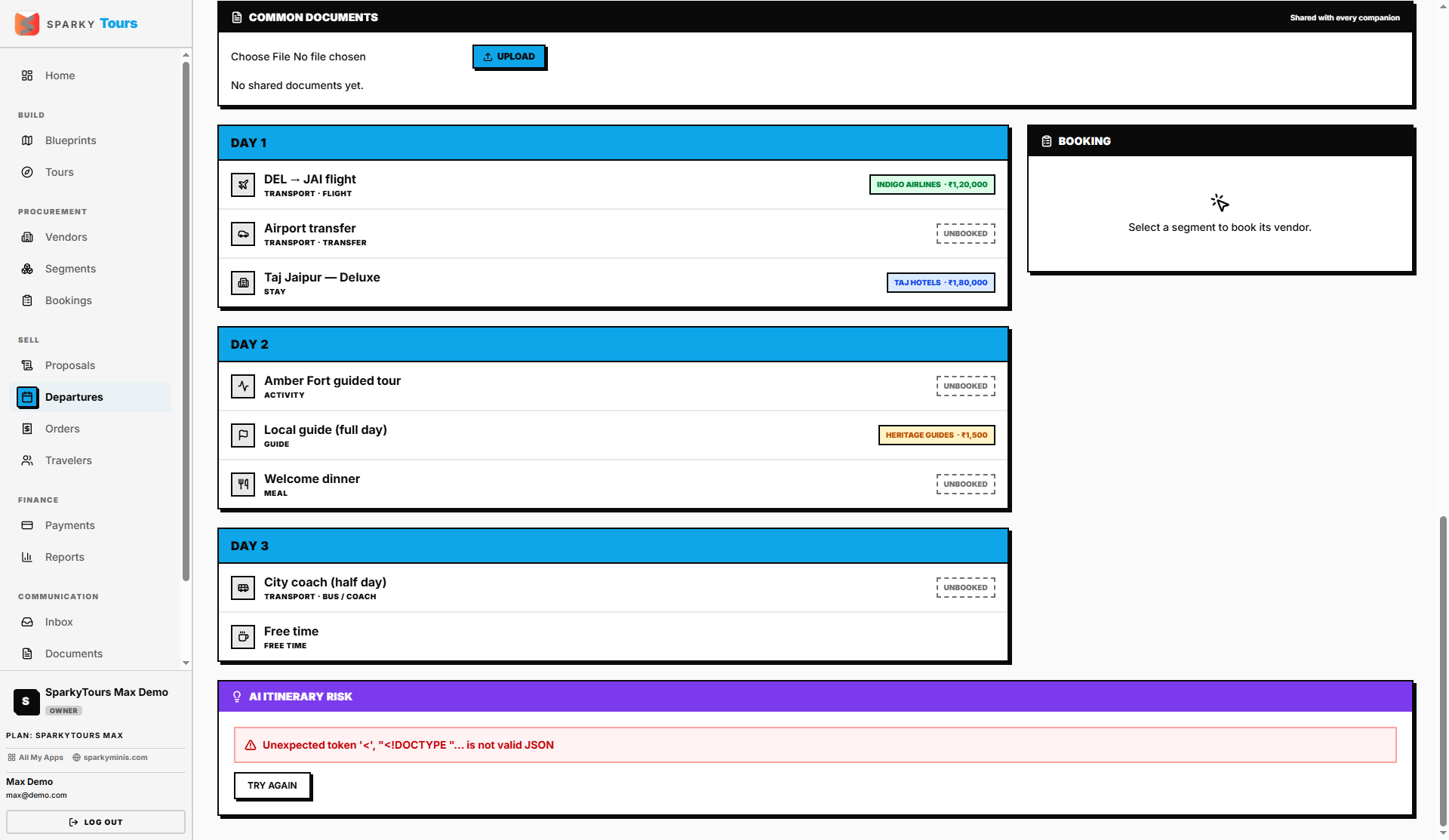
From the Departure page, book a vendor against a segment — pick the vendor and service type; only one active booking per segment is allowed at a time. New bookings start "pending." You can't change cost fields once a booking has been paid or refunded, and you can't switch vendors once it's confirmed (revert to pending first). Removing a booking outright is only allowed while it's still pending — once confirmed, cancel it instead, so there's a record.
How to manage traveler orders for a Departure
Add an order by picking an existing traveler or creating a new one on the spot — only one order per traveler per Departure is allowed. New orders start as "enquiry." You can set the price and move the order through its status. Removing an order is blocked if it has any payment schedules — cancel it instead.
How to manage companion-app access
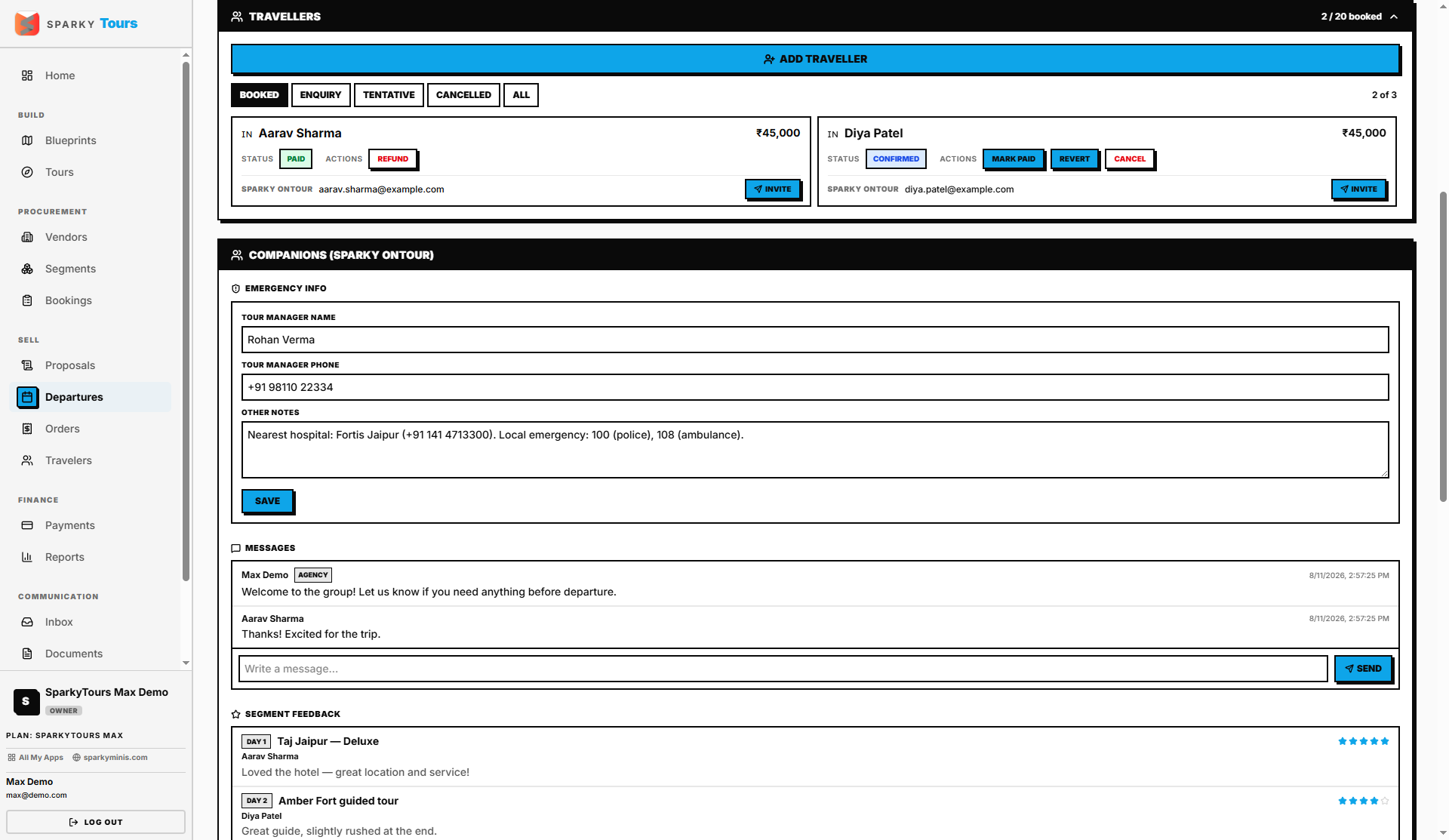
If your plan includes the SparkyOnTour companion app, invite a traveler with an email on file to join as a companion, revoke an invite, or send a group message to everyone invited to this Departure. You can also see any feedback travelers leave per segment after the trip (ratings/comments), shown read-only here.
How to share documents for a Departure
Upload a document visible to everyone on the trip, delete one, or attach a document you've already uploaded elsewhere without re-uploading it.
AI Itinerary Risk (Max plan)
If your plan includes AI Features, a "AI Itinerary Risk" panel appears on the Departure page. Click Analyze risks to have it scan the day-by-day itinerary and booking statuses for problems — for example, flagging an unconfirmed booking close to departure. Each finding shows a severity level and description, plus suggested actions. It calls a live AI model, so it can take a moment and the exact wording will vary between runs; if it can't produce a valid result it shows an error with a "Try again" option rather than garbage output.